Linux basics - Tutorial 1[redhat]
![Linux basics - Tutorial 1[redhat]](https://cdn.hashnode.com/uploads/covers/62db945e38759e6b49829749/a932f151-8a70-4467-8c91-cdeecdf3c668.png)
Redhat Linux Basics - Tutorial 1.
After going through this you will be comfortable in Linux terminal and basic linux commands.
Understanding the terminal
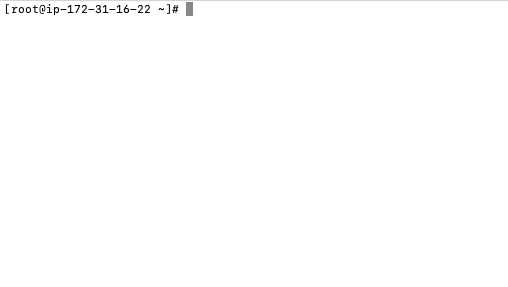
What does the above picture show?
Let us understand each element one by one.
Content shown in the pic - [root@ip-172-31-16-22 ~]#.
root - This indicates you are logged in as root user
ip-172-31-16-22 - This shows the hostname
~ - This indicates you are inside the home directory of root user. Ex. /home/root
'#' - This indicates you are logged-in as root user.
Note: / is called the root directory. It is the top most directory in Linux.
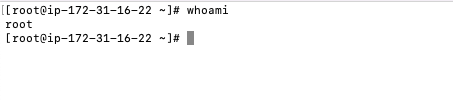
Command to display the username you are currently logged in as.
whoami
If you type this in the terminal you will get the current username as shown in the output below.
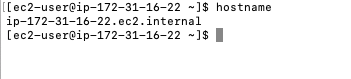
Command to display the hostname
hostname
If you type this in the terminal you will see the hostname as shown in the output below.
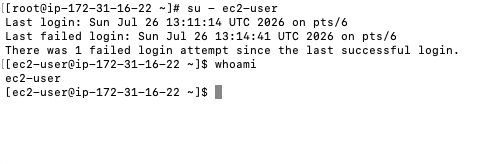
Command to switch user from root user to any user who is already there on system
su - username
If you type this in the terminal you will switch to the username as shown in the output below.
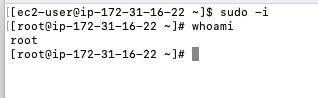
Command to switch from any user to root user
sudo -i
If you type this in the terminal you will switch to the root user as shown in the output below.
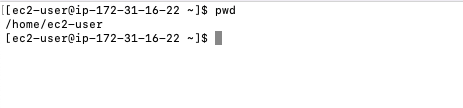
Command to print your current working directory
pwd
If you type this in the terminal you get the output as shown below
.
Command to clear the terminal
clear
If you type this in the terminal you get the output as shown below
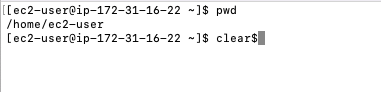
Note: To clear the terminal you can also use Ctrl+l
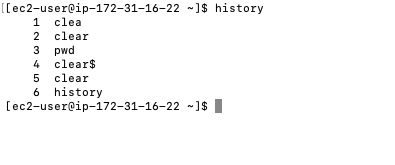
Command to see the history of all commands you executed in the terminal in the current session
history
If you type this in the terminal you get the output as shown below
.
Command to see the manual of any linux command
man history
If you type this in the terminal you get the output as shown below
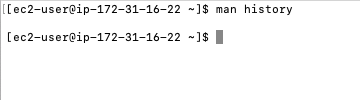
Note: To syntax is man <any_linux_command>. You open the manual of the command, then press q to exit out of manual..
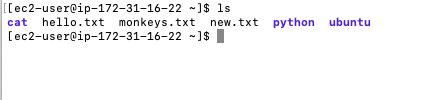
Command to list files and directories
ls
If you type this in the terminal you get the output as shown below. This just lists the files and directories in the present working directory.
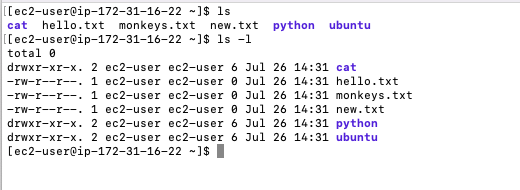
Command to long list files and directories
ls -l
If you type this in the terminal you get the output as shown below. This lists the files and directories in the present working directory with additional details.
Command to list all files and directories along with hidden files also.
ls -a
If you type this in the terminal you get the output as shown below. Shows all files, including hidden files and directories (those whose names start with a .)

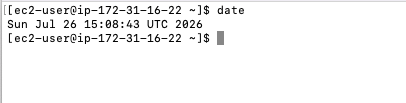
Command to see the current date and timestamp
date
If you type this in the terminal you get the output as shown below.
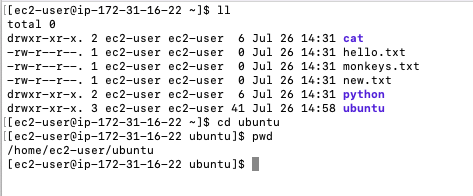
Command to change directory. Syntax cd your-directory-name.
cd ubuntu
If you type this in the terminal you get the output as shown below. This navigates you to ubuntu directory.
Note: There are many things you can do with cd command using paramaters. Let me show you some below. Please explore on your own also.
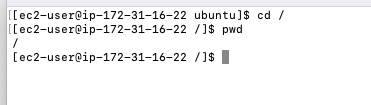
Command to change directory.
cd /
If you type this in the terminal you get the output as shown below. This navigates you to root directory.
Command to change directory.
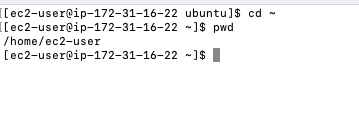
cd ~
If you type this in the terminal you get the output as shown below. This navigates you to user's home directory.
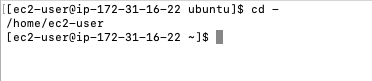
Command to change directory.
cd -
If you type this in the terminal you get the output as shown below. This navigates you to user's previous working directory.
You can also use.
cd ..
Understand Important Directories
/
Root directory
/home
Users' home directories
~
Current user's home directory
/root
Root user's home directory
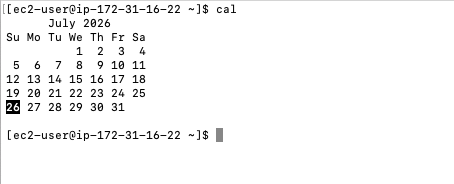
Command to display calender.
cal
If you type this in the terminal you get the output as shown below.
Create single directory
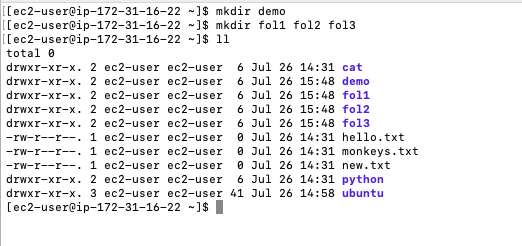
mkdir demo
Create multiple directories
mkdir dir1 dir2 dir3
If you type this in the terminal you get the output as shown below.
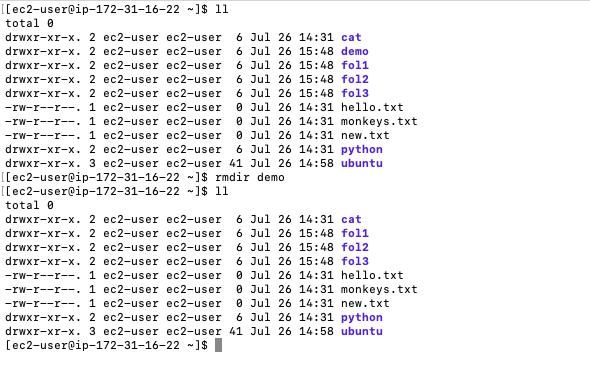
Remove Empty Directory
rmdir demo
If you type this in the terminal you get the output as shown below.
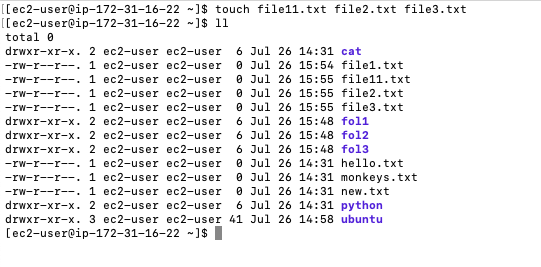
Create Empty Files
touch file1.txt
Create Multiple files
touch file11.txt file2.txt file3.txt
If you type this in the terminal you get the output as shown below.
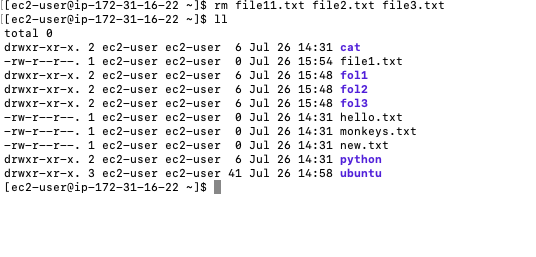
Remove a file or multiple files
rm file11.txt file2.txt file3.txt
If you type this in the terminal you get the output as shown below.
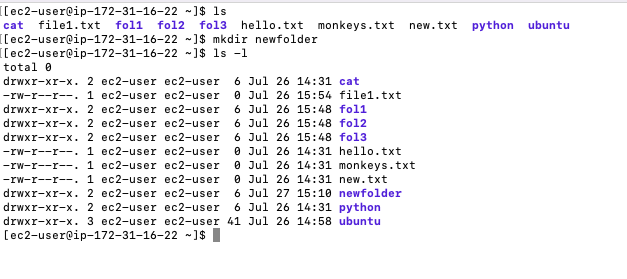
Create a directory or multiple directories
mkdir newfolder
If you type this in the terminal you get the output as shown below.
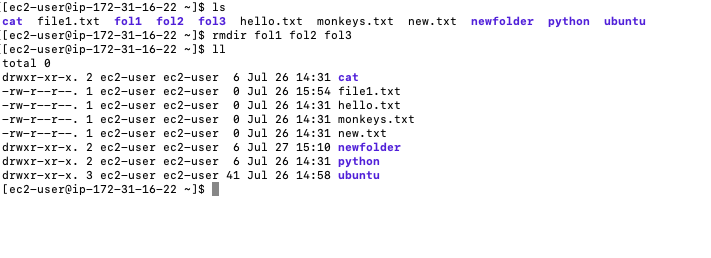
Delete a empty directory or multiple directories
rmdir fol1 fol2 fol3
If you type this in the terminal you get the output as shown below.
Delete a directory with content inside
rm -rf ubuntu
If you type this in the terminal you get the output as shown below.
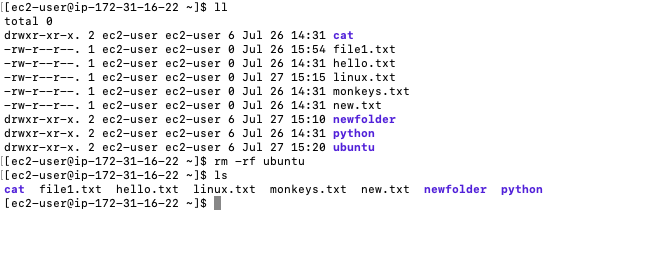
Note: This is also the command to perform a force delete..
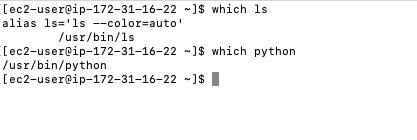
To know location of any command or software
which ls
which python
If you type this in the terminal you get the output as shown below.
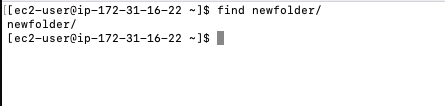
To know location of file or folder
find newfolder
If you type this in the terminal you get the output as shown below.
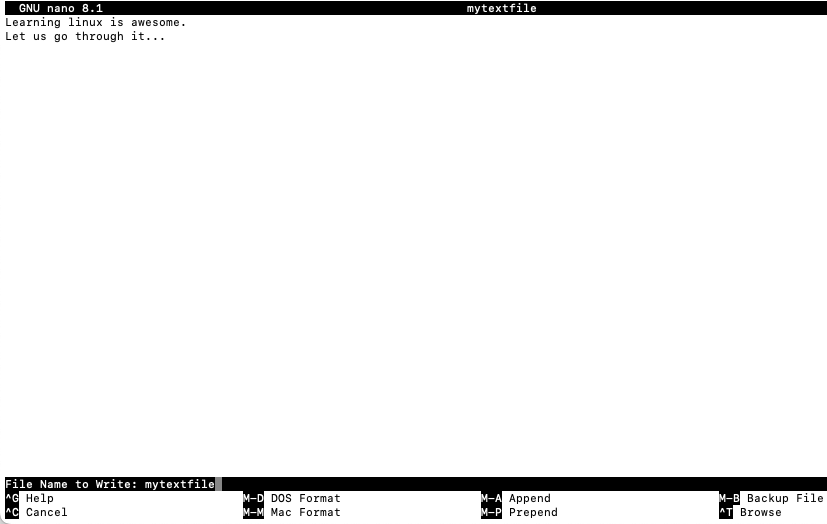
To write contents in a file
nano mytextfile
After typying the text save and exit using Ctrl+x and Enter keys on keyboard. Keep in mind nano editor is used here, you can also explore and learn about vim editor.
If you type this in the terminal you get the output as shown below.
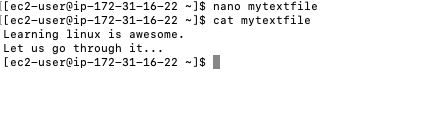
To see the contents of a file
cat mytextfile
If you type this in the terminal you get the output as shown below.
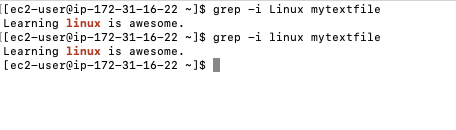
To find a word in a file use grep
grep linux mytextfile
grep -i Linux mytextfile #ignores case sensitive
If you type this in the terminal you get the output as shown below.
With this we come to the end of the tutorial 1 of Linux. Thank you for going through this. See you all in part two.. Until then Happy Learning 😀
![Linux basics - Tutorial 4[redhat]](https://cdn.hashnode.com/uploads/covers/62db945e38759e6b49829749/de009029-4fed-41f7-b9b2-08d02d7495fb.png)
![Linux basics - Tutorial 3[redhat]](https://cdn.hashnode.com/uploads/covers/62db945e38759e6b49829749/11761442-25aa-407d-a3d2-960252bf2f09.png)
![Linux basics - Tutorial 2[redhat]](https://cdn.hashnode.com/uploads/covers/62db945e38759e6b49829749/9f677207-0a84-499c-9d83-159fb45d2544.png)