Linux basics - Tutorial 4[redhat]
![Linux basics - Tutorial 4[redhat]](https://cdn.hashnode.com/uploads/covers/62db945e38759e6b49829749/de009029-4fed-41f7-b9b2-08d02d7495fb.png)
Redhat Linux Basics - Tutorial 4.
Package Management in Red Hat Linux (RHEL)
Package management is one of the most important responsibilities of a Linux System Administrator or DevOps Engineer.
Almost every software installation, update, bug fix, and security patch is performed through the package manager.
In Red Hat Enterprise Linux (RHEL), the default package manager is DNF (Dandified YUM).
Note: In RHEL 7, the package manager is YUM.
In RHEL 8 and RHEL 9, DNF replaces YUM (although theyumcommand still works as an alias).
Popular Linux Distributions and Their Package Managers
Different Linux distributions use different package managers and package formats.
Although Linux commands are largely the same across distributions, the way software is installed and managed varies depending on the distribution family.
Linux Distribution Families
| Distribution Family | Popular Distributions | Package Manager | Package Format |
|---|---|---|---|
| Red Hat Family | RHEL, CentOS Stream, Rocky Linux, AlmaLinux, Fedora | dnf / yum |
.rpm |
| Debian Family | Debian, Ubuntu, Linux Mint, Pop!_OS | apt |
.deb |
| SUSE Family | openSUSE, SUSE Linux Enterprise (SLES) | zypper |
.rpm |
| Arch Family | Arch Linux, Manjaro, EndeavourOS | pacman |
.pkg.tar.zst |
| Alpine Linux | Alpine Linux | apk |
.apk |
| Gentoo Linux | Gentoo | emerge |
Source Code |
| Slackware | Slackware | slackpkg |
.txz |
Red Hat Family
Popular Distributions
Red Hat Enterprise Linux (RHEL)
Rocky Linux
AlmaLinux
CentOS Stream
Fedora
Package Manager
dnf
Older versions:
yum
Package Format
.rpm
Install Package
sudo dnf install git -y
If you type this in the terminal you get the output as shown below.
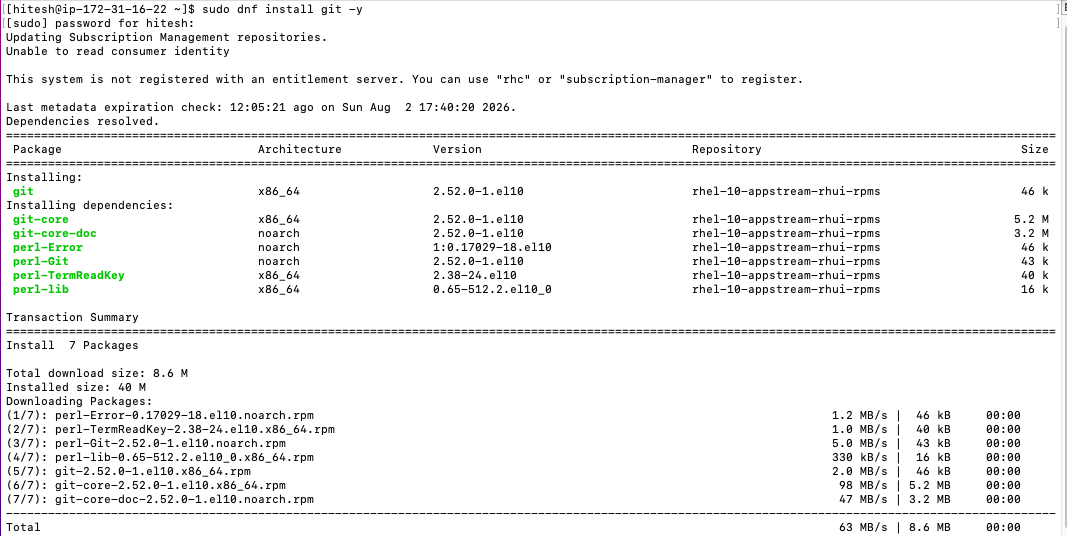
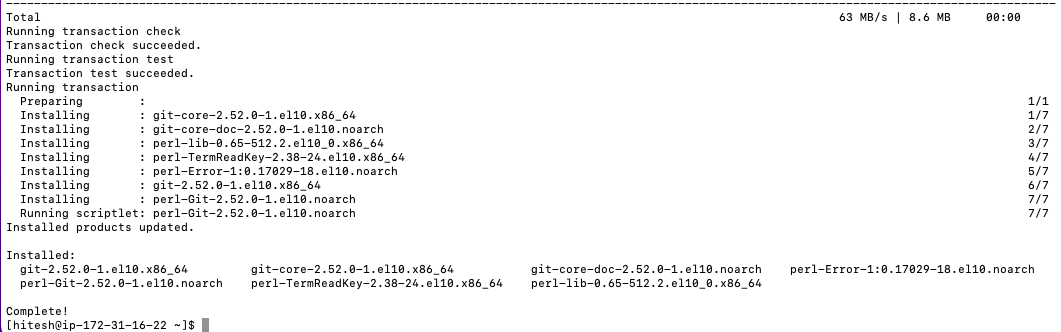
Note: You can see that the software package git is installed and it shows complete.
What is a Package?
A package is a compressed file that contains:
Software
Libraries
Configuration files
Documentation
Dependencies
Examples:
httpd (Apache Web Server)
git
nano
docker
python3
Instead of downloading software manually, Linux installs packages using package managers.
What is DNF?
DNF (Dandified YUM) is the package manager used in Red Hat Enterprise Linux 8 and later.
It is responsible for:
Installing packages
Updating packages
Removing packages
Searching packages
Resolving dependencies
Managing repositories
Check DNF Version
dnf --version
If you type this in the terminal you get the output as shown below.
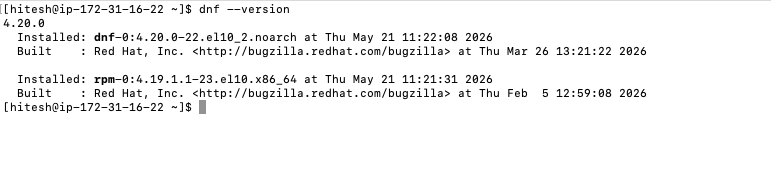
Explanation
dnf→ Package manager--version→ Displays the installed DNF version
Check Installed Repositories
dnf repolist
If you type this in the terminal you get the output as shown below.
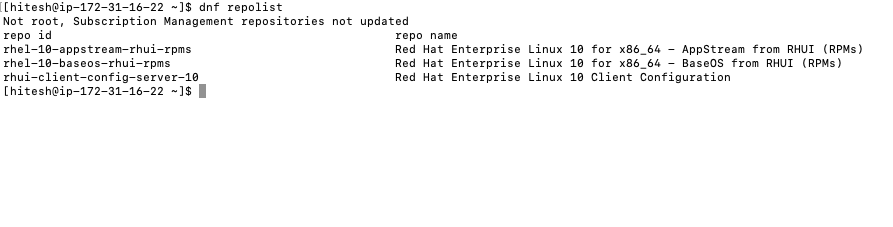
Explanation
Displays all enabled software repositories.
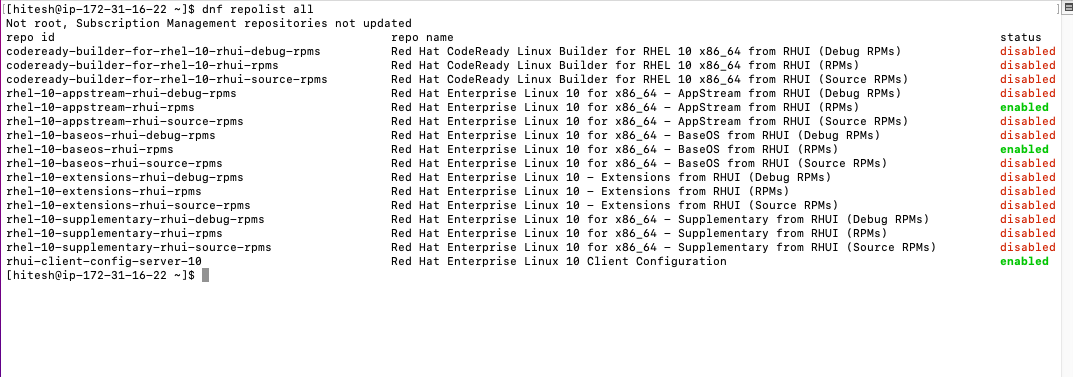
Display All Repositories
dnf repolist all
Shows both enabled and disabled repositories.
If you type this in the terminal you get the output as shown below.
Search for a Package
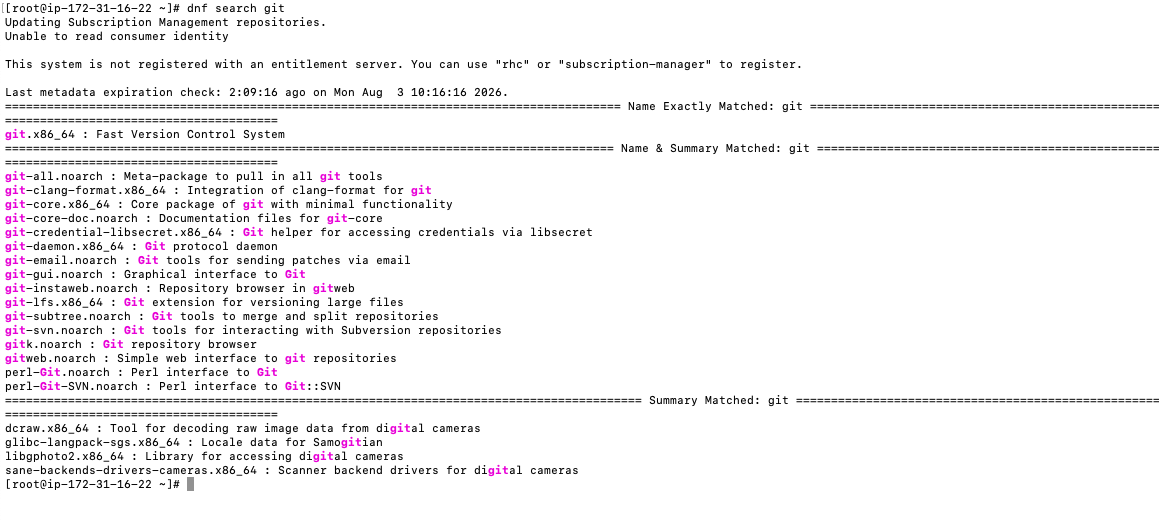
dnf search git
Explanation
Searches for packages related to git online.
If you type this in the terminal you get the output as shown below.
Display Package Information
dnf info git
If you type this in the terminal you get the output as shown below.
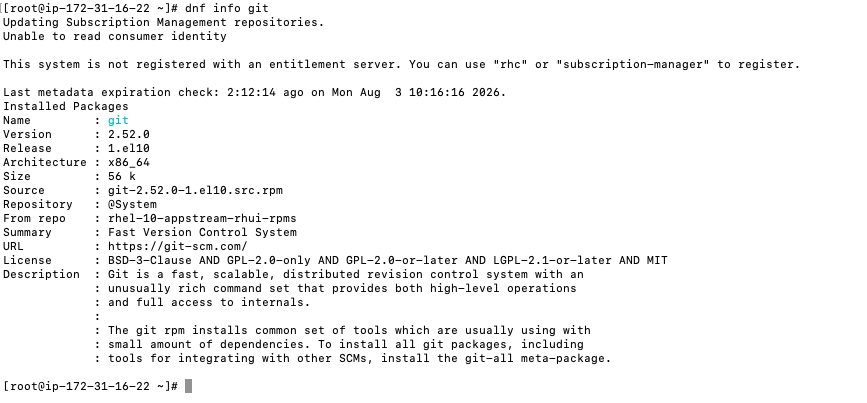
Displays
Version
Repository
Description
Architecture
Size
Install a Package
sudo dnf install git -y
If you type this in the terminal you get the output as shown below.
Explanation
sudo→ Run with administrator privileges.dnf→ Package manager.install→ Installs a package.git→ Package name.-y→ Automatically answers "Yes."
Install Multiple Packages
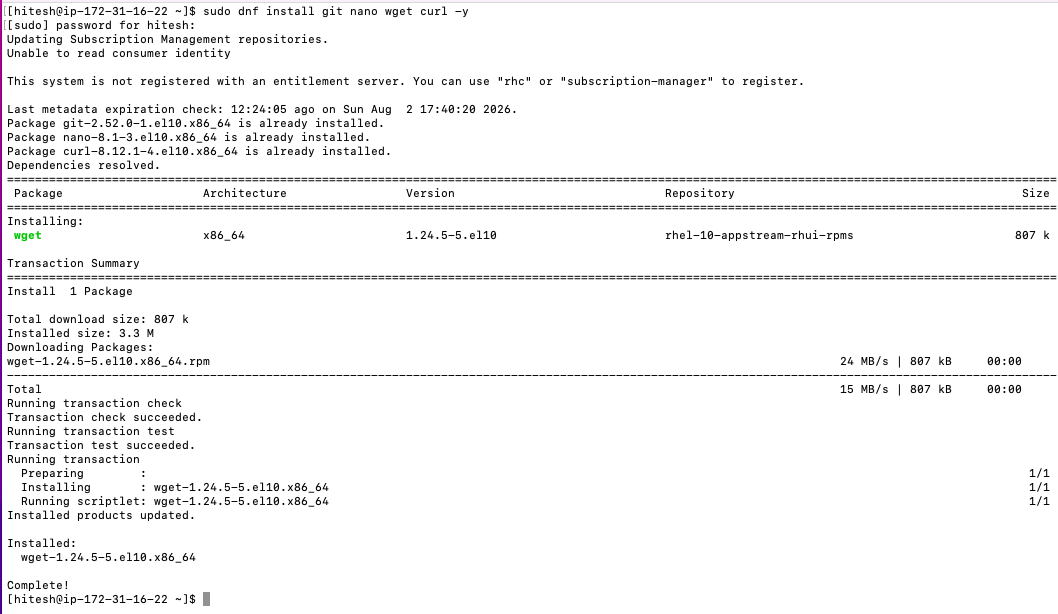
sudo dnf install git nano wget curl -y
Installs multiple packages in one command.
If you type this in the terminal you get the output as shown below.
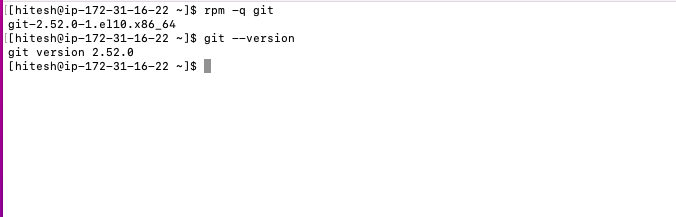
Verify Package Installation
rpm -q git
or
git --version
If you type this in the terminal you get the output as shown below.
List Installed Packages
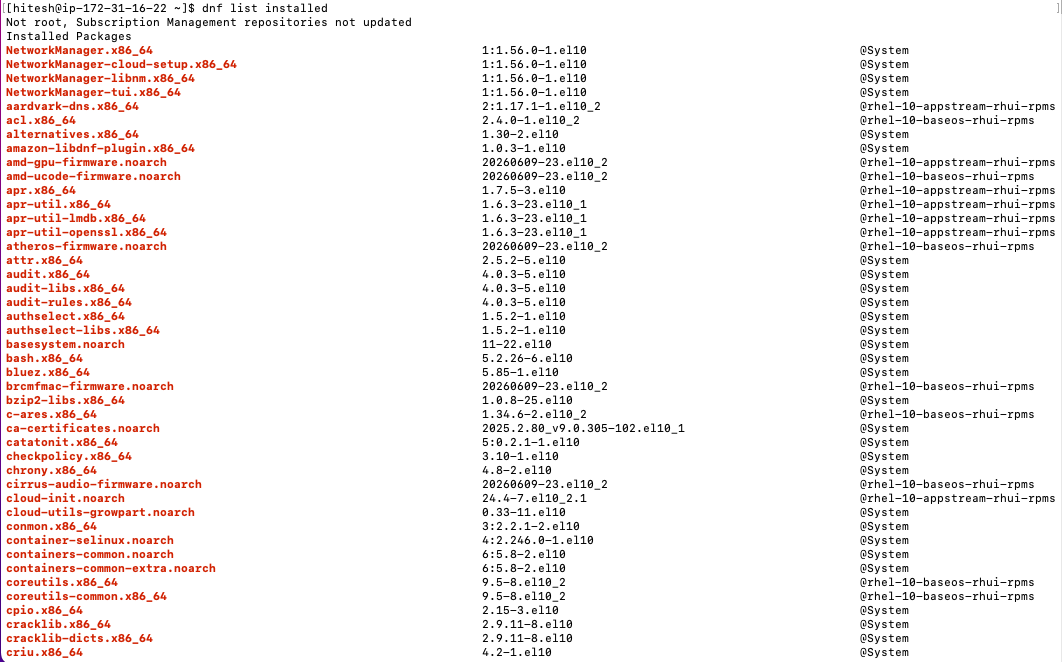
dnf list installed
Displays every installed package.
If you type this in the terminal you get the output as shown below.
List a Specific Installed Package
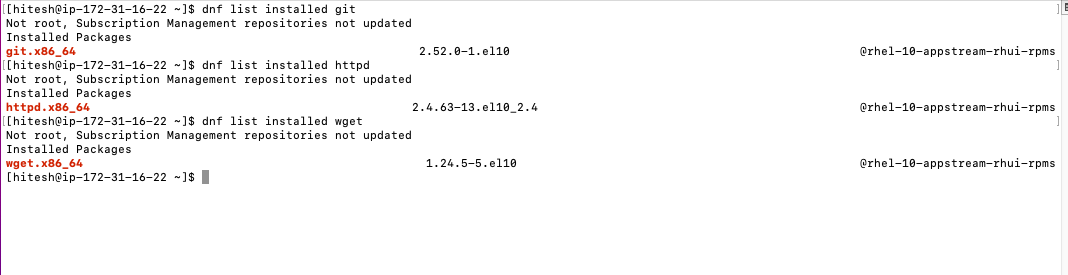
dnf list installed git
Checks whether Git is installed.
If you type this in the terminal you get the output as shown below.
Update a Single Package
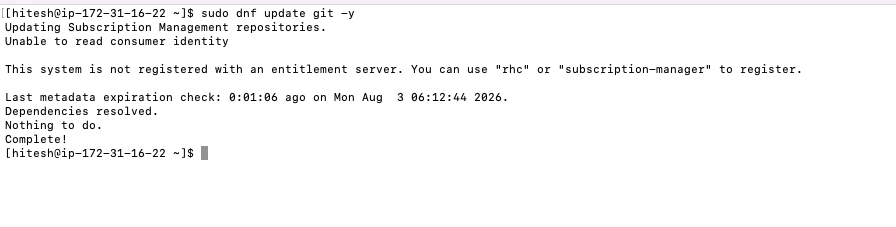
sudo dnf update git -y
Updates only Git.
If you type this in the terminal you get the output as shown below.
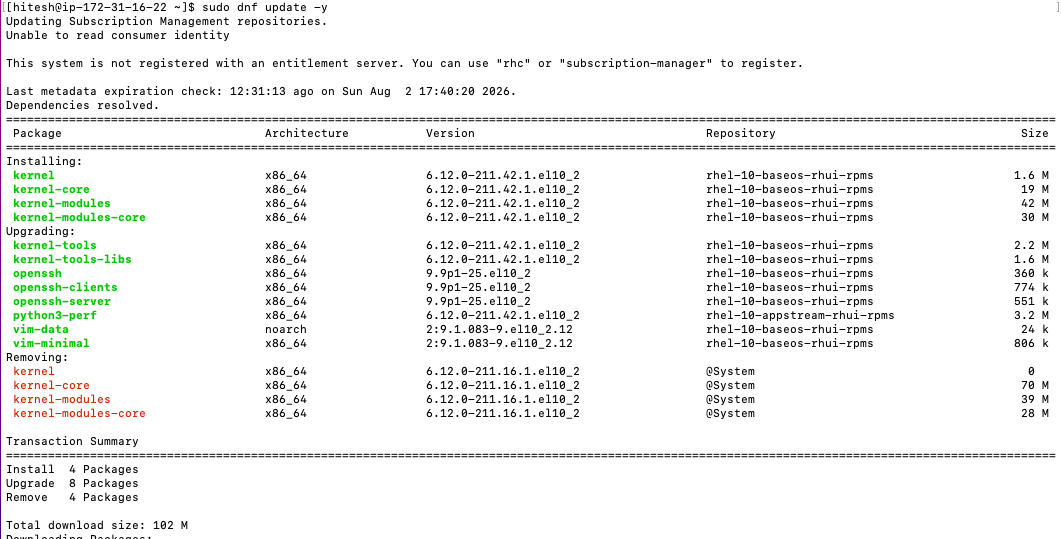
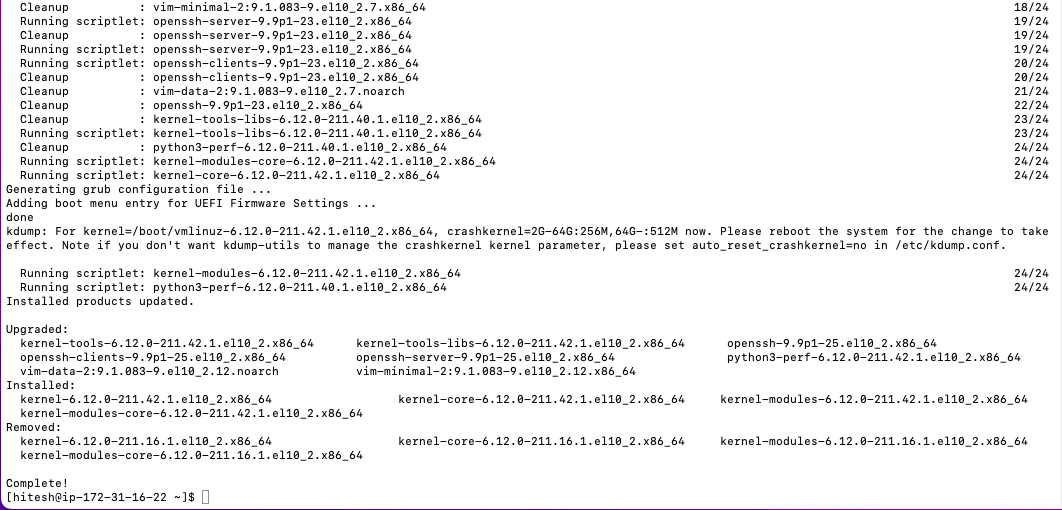
Update All Packages
sudo dnf update -y
Updates every installed package to the latest available version.
If you type this in the terminal you get the output as shown below.
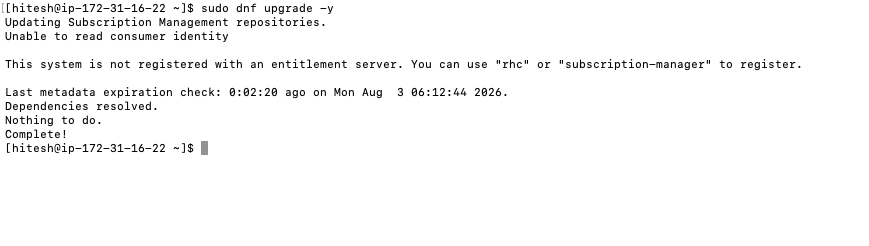
Upgrade the Entire System
sudo dnf upgrade -y
Performs a complete system upgrade.
If you type this in the terminal you get the output as shown below.
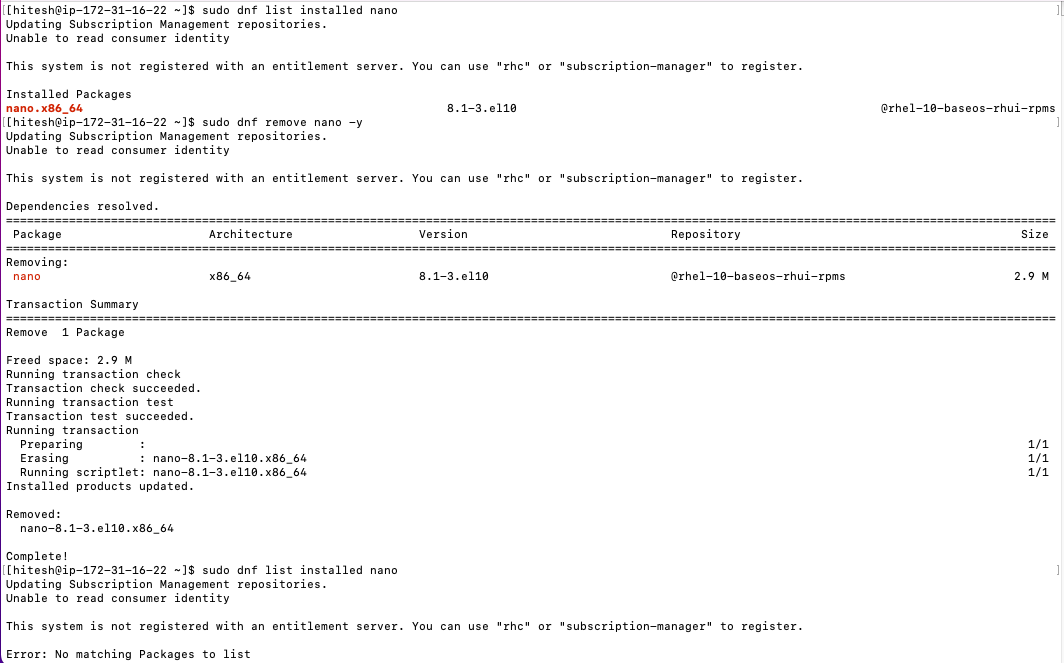
Remove a Package
sudo dnf remove nano -y
Uninstalls Nano.
If you type this in the terminal you get the output as shown below.
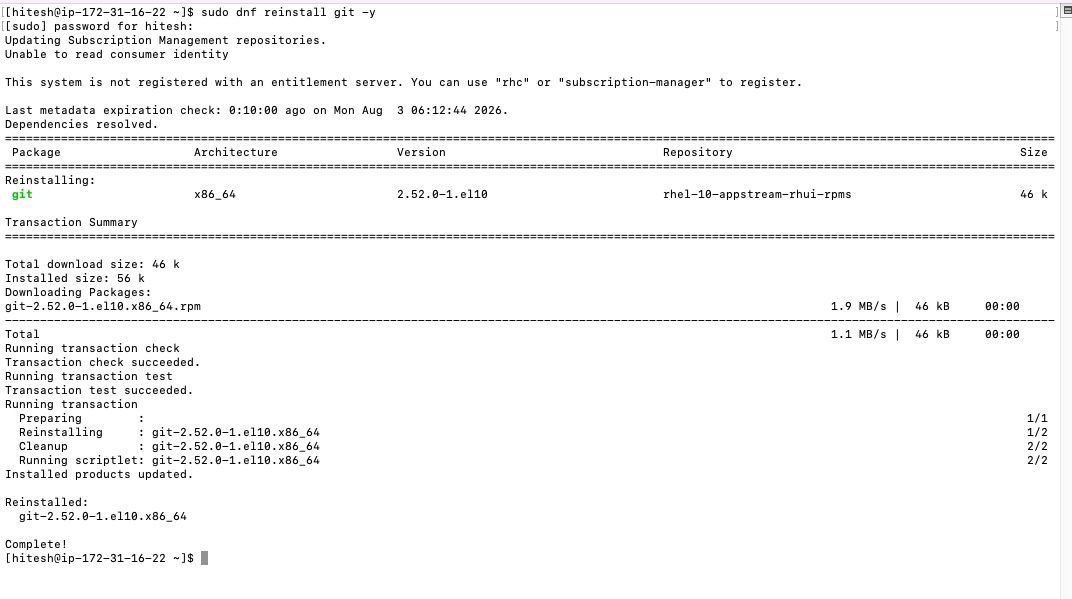
Reinstall a Package
sudo dnf reinstall git -y
Reinstalls Git.
Useful when package files become corrupted.
If you type this in the terminal you get the output as shown below.
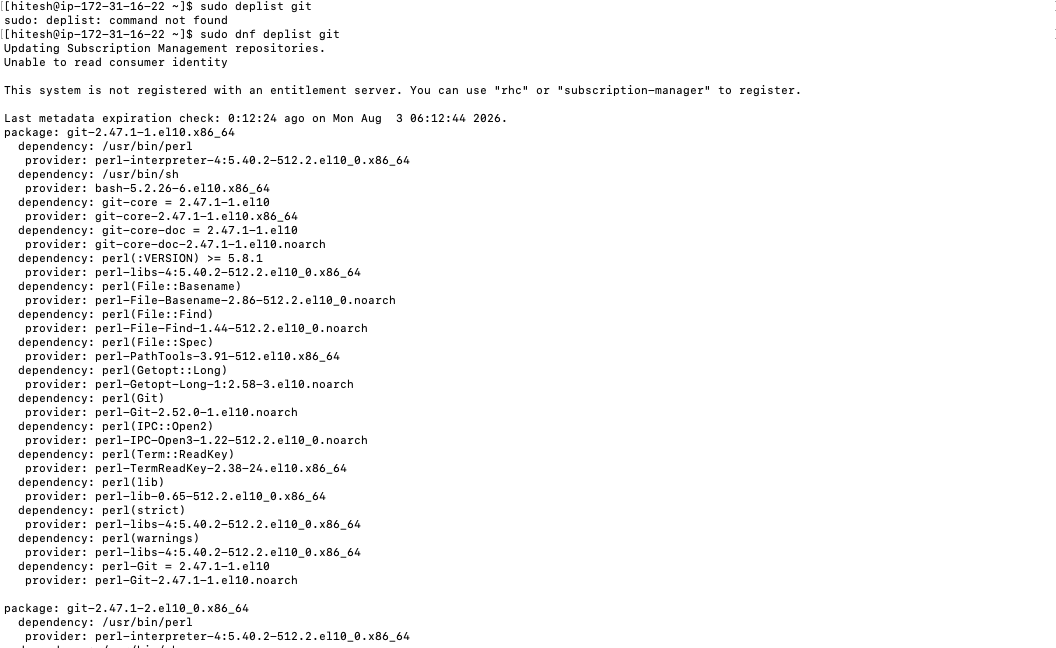
Display Package Dependencies
dnf deplist git
Shows all package dependencies.
If you type this in the terminal you get the output as shown below.
Install a Local RPM Package
sudo dnf install ./package.rpm
Installs an RPM file downloaded locally.
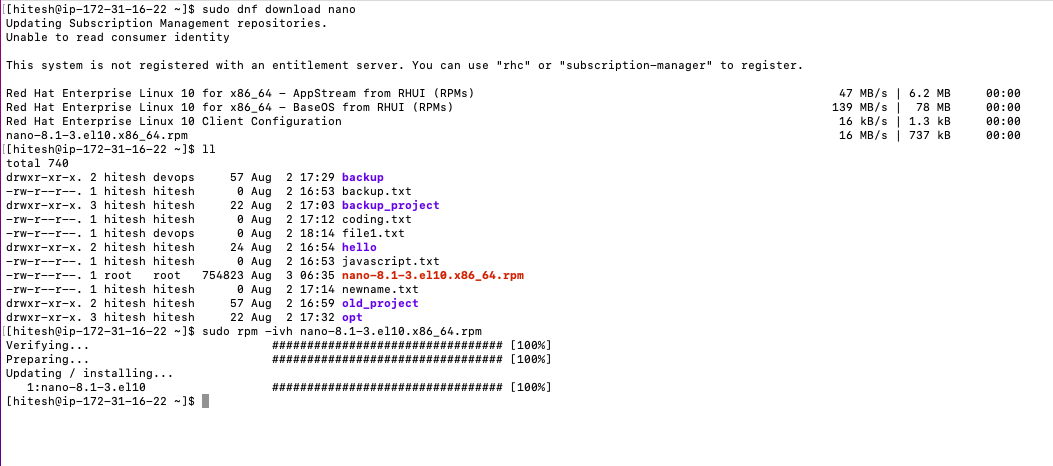
Install Using RPM
sudo rpm -ivh package.rpm
Explanation
-i→ Install-v→ Verbose-h→ Progress bar
If you type this in the terminal you get the output as shown below.
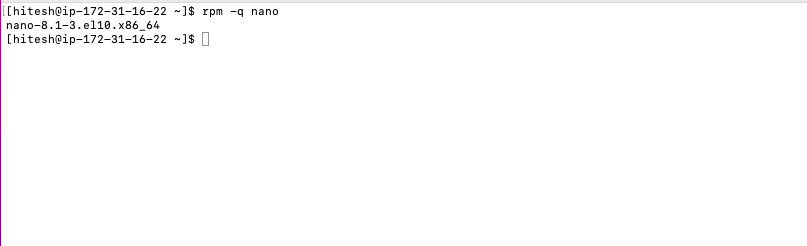
Verify Installed RPM
rpm -q nano
Checks whether nano is installed.
If you type this in the terminal you get the output as shown below.
Display Package Files
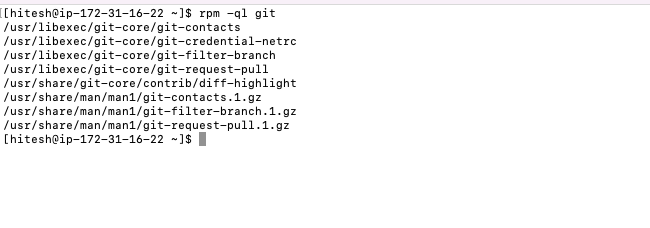
rpm -ql git
Lists every file installed by the package.
If you type this in the terminal you get the output as shown below.
Display Package Information
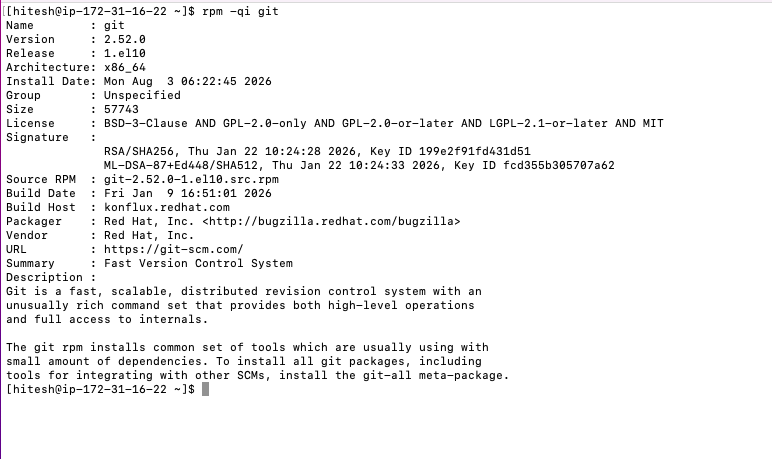
rpm -qi git
Displays detailed package information.
If you type this in the terminal you get the output as shown below.
Verify Package Integrity
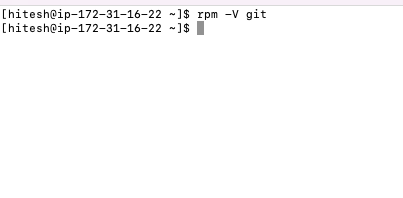
rpm -V git
Checks whether installed package files have been modified.
If you type this in the terminal you get the output as shown below.
Remove an RPM Package
sudo rpm -e package_name
Removes an RPM package.
Note: Remove any package on your own and observe the output.
Clean Cached Packages
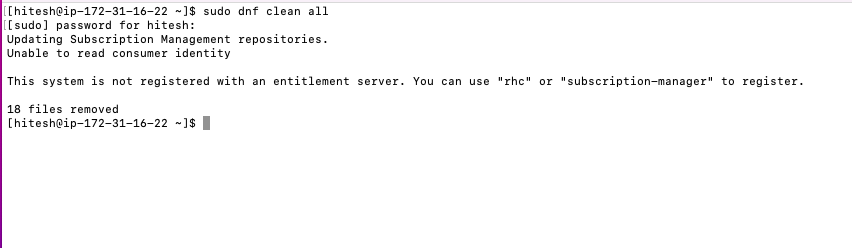
sudo dnf clean all
Deletes cached packages and metadata.
Useful when troubleshooting repository issues.
If you type this in the terminal you get the output as shown below.
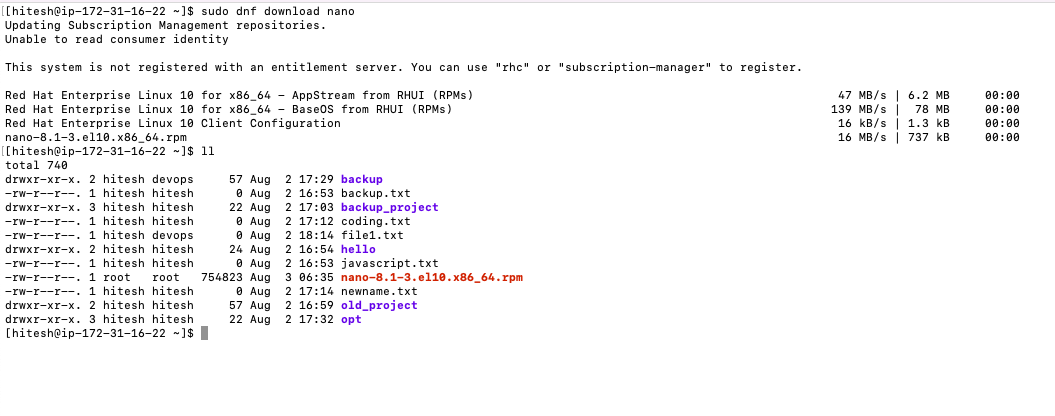
Download Packages Without Installing
dnf download git
Downloads the RPM package without installing it.
If you type this in the terminal you get the output as shown below.
Display Package History
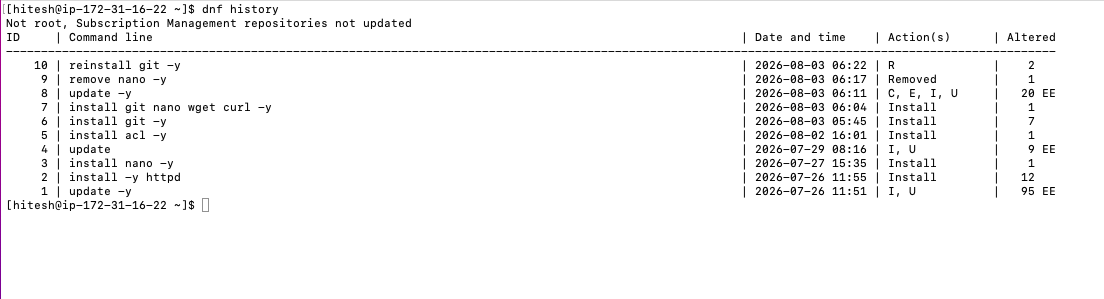
dnf history
Displays installation, removal, and update history.
If you type this in the terminal you get the output as shown below.
Undo a Package Installation
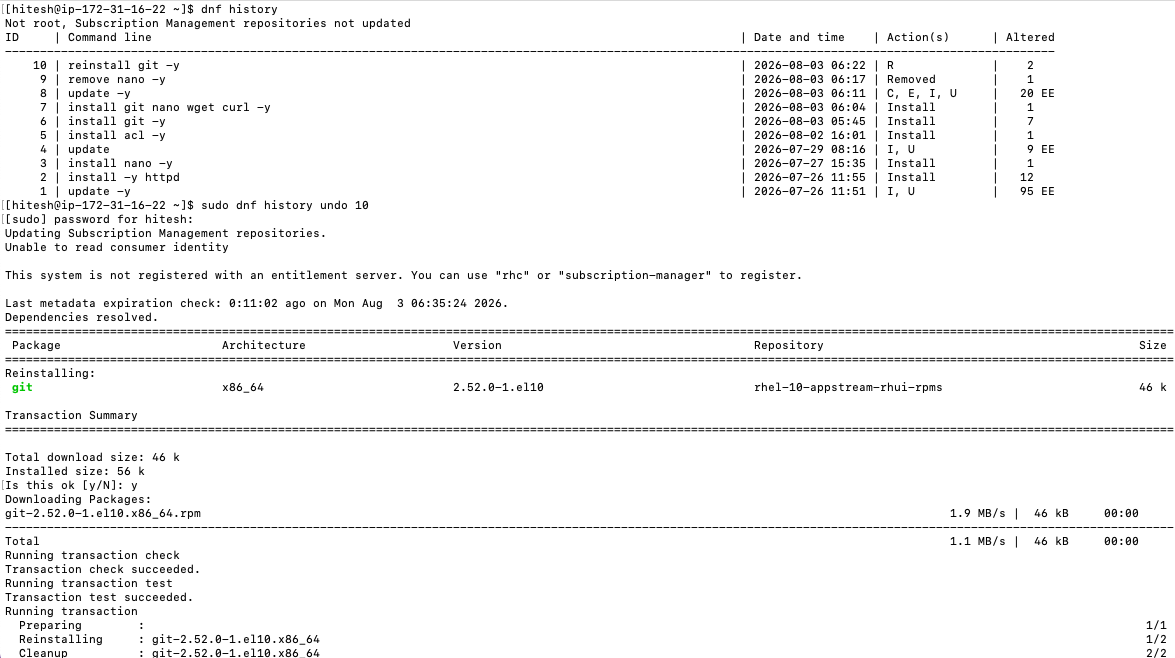
sudo dnf history undo 10
Reverts transaction number 10.
If you type this in the terminal you get the output as shown below.
Check Available Updates
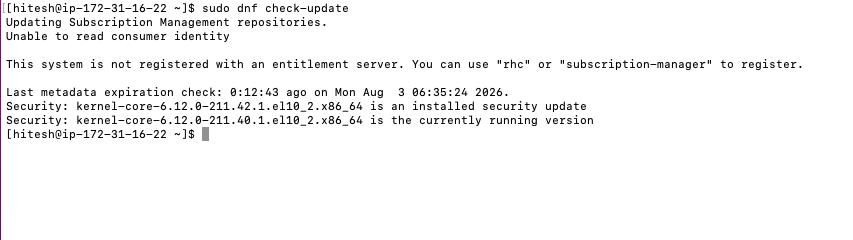
dnf check-update
Displays packages that can be updated.
If you type this in the terminal you get the output as shown below.
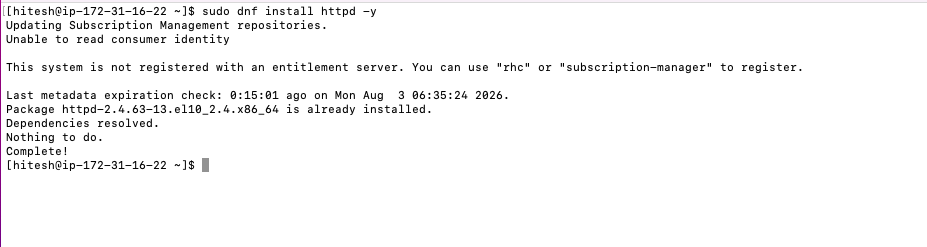
Install Apache Web Server
sudo dnf install httpd -y
If you type this in the terminal you get the output as shown below.
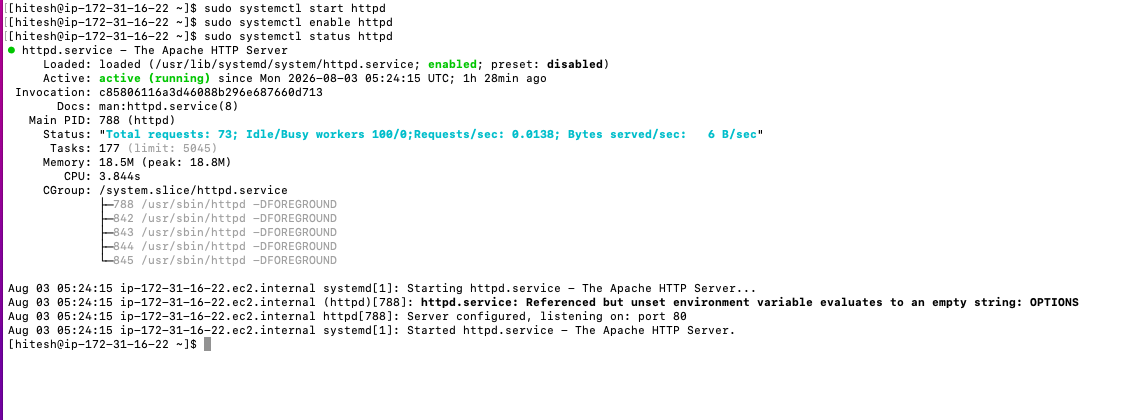
Start Apache
sudo systemctl start httpd
If you type this in the terminal you get the output as shown below.
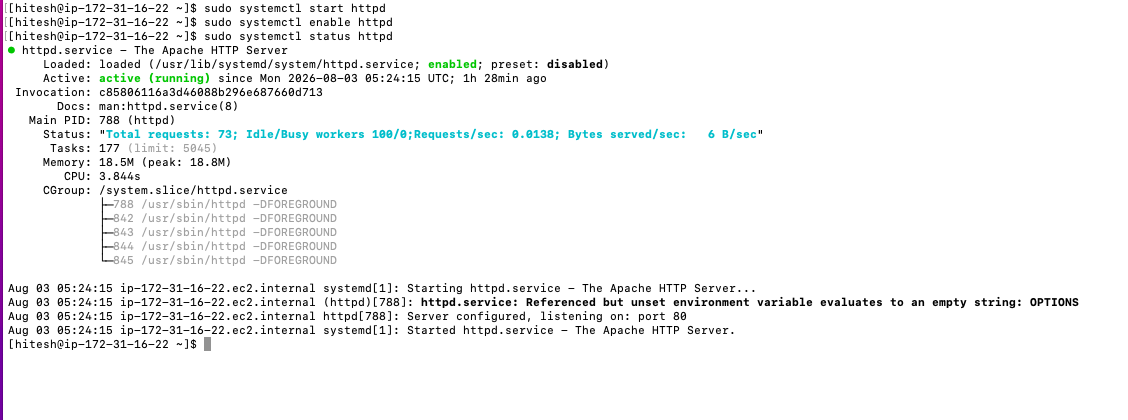
Enable Apache on Boot
sudo systemctl enable httpd
If you type this in the terminal you get the output as shown below.
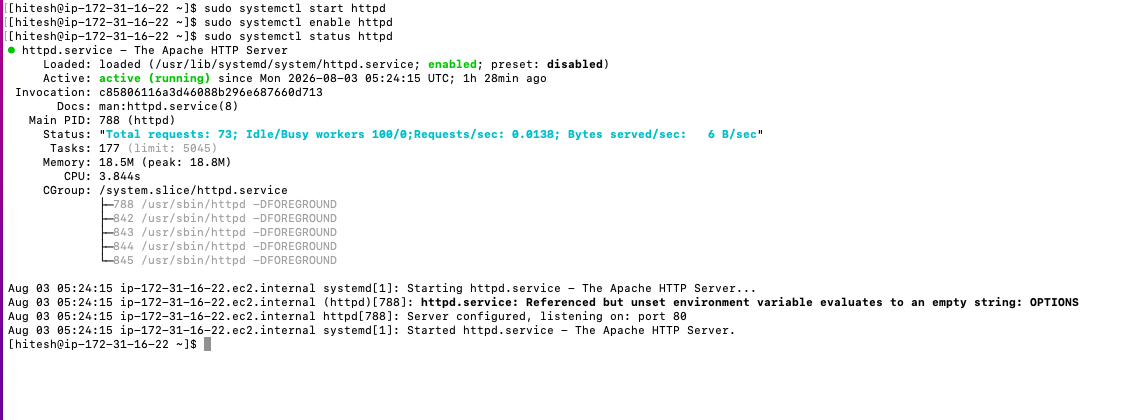
Verify Apache Installation
systemctl status httpd
If you type this in the terminal you get the output as shown below.
Practical DevOps Lab - Practice task for you
Search for Git
dnf search git
View Git Information
dnf info git
Install Git
sudo dnf install git -y
Verify Installation
git --version
Install Nano
sudo dnf install nano -y
Install Apache
sudo dnf install httpd -y
Verify Apache Package
rpm -q httpd
List Files Installed by Apache
rpm -ql httpd
Remove Nano
sudo dnf remove nano -y
View Package History
dnf history
Clean DNF Cache
sudo dnf clean all
Commands Covered
| Command | Purpose |
|---|---|
dnf --version |
Display DNF version |
dnf repolist |
List enabled repositories |
dnf repolist all |
List all repositories |
dnf search |
Search packages |
dnf info |
Display package information |
dnf install |
Install packages |
dnf remove |
Remove packages |
dnf reinstall |
Reinstall packages |
dnf update |
Update packages |
dnf upgrade |
Upgrade the system |
dnf list installed |
List installed packages |
dnf check-update |
Check available updates |
dnf history |
Display package transaction history |
dnf history undo |
Roll back a transaction |
dnf clean all |
Clear package cache |
dnf module list |
Display software modules |
rpm -q |
Check installed RPM |
rpm -qi |
Display RPM information |
rpm -ql |
List package files |
rpm -V |
Verify package integrity |
rpm -ivh |
Install RPM package |
rpm -e |
Remove RPM package |
Summary
In this tutorial, you learned:
What packages are in Linux
The difference between DNF, YUM, and RPM
How to search, install, update, and remove software
How to verify installed packages
How to manage repositories
How to work with RPM packages
How to roll back package transactions
How package management is used in real-world DevOps environments
Package management is one of the most frequently used skills in Linux administration and forms the foundation for installing web servers, databases, programming languages, monitoring tools, CI/CD software, and container platforms.
With this we come to the end of the tutorial 4 of Linux. Thank you for going through this. See you all in some other tutorial series.. Until then Happy Learning 😀
![Linux basics - Tutorial 3[redhat]](https://cdn.hashnode.com/uploads/covers/62db945e38759e6b49829749/11761442-25aa-407d-a3d2-960252bf2f09.png)
![Linux basics - Tutorial 2[redhat]](https://cdn.hashnode.com/uploads/covers/62db945e38759e6b49829749/9f677207-0a84-499c-9d83-159fb45d2544.png)
![Linux basics - Tutorial 1[redhat]](https://cdn.hashnode.com/uploads/covers/62db945e38759e6b49829749/a932f151-8a70-4467-8c91-cdeecdf3c668.png)